PowerPoint translation: text expansion, charts, notes and layout QA
Translate presentation decks while preserving the message, chart facts, speaker notes, reading order and readable slide layouts.
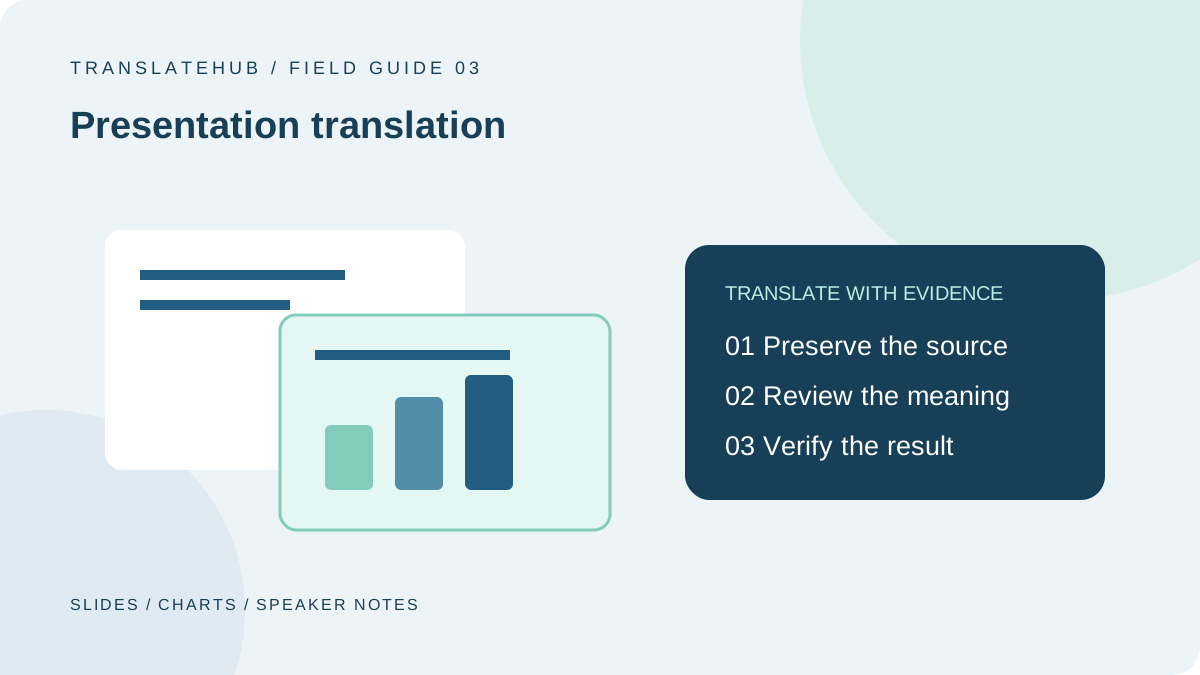
PowerPoint translation succeeds when the words, visuals and presentation sequence work together. Translating every text box does not necessarily produce a usable deck. A title can overflow, chart labels can lose their connection to the data, and speaker notes can still describe an older version of the slide.
The practical goal is to help the target-language audience understand the same argument, evidence and next action at a sensible presentation pace. Achieving that goal requires separate attention to translation, concise rewriting, layout and an actual slideshow review.
1. Establish how the deck will be used
Start by distinguishing a live presentation from a document emailed for independent reading or a training handout. A live speaker can explain details in notes; a self-contained customer document needs more explanation on the page. Without this context, a translator cannot judge whether a sentence should remain complete or become a compact heading.
Record how familiar the audience is with the product and subject. Internal abbreviations may need explanation for external readers. Those explanations must come from approved terminology or the content owner, not from invented product capabilities or additional commercial promises.
Decide whether the target deck must retain the same slide count and which objects may be moved. These are project constraints rather than universal translation rules. Make tradeoffs explicit before an editor has to choose between fitting a box and retaining an important condition.
2. Inventory every text-bearing object
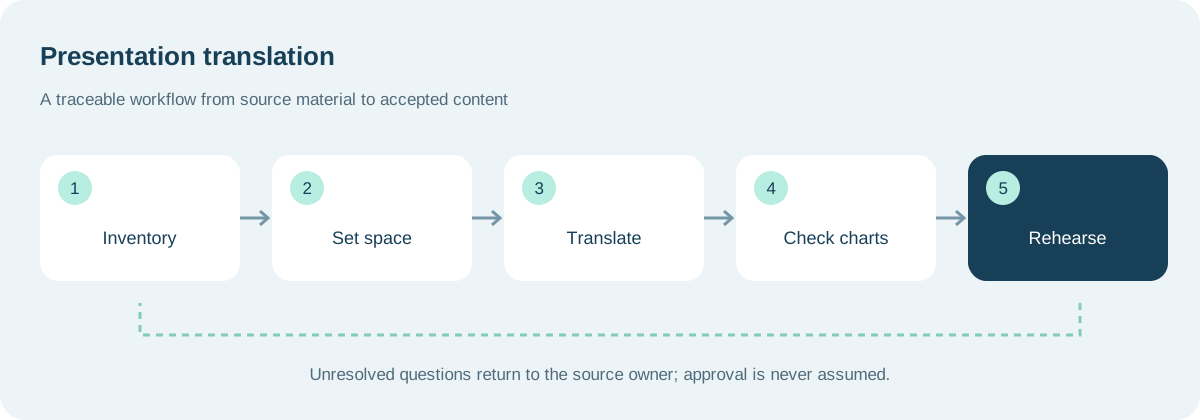
Review titles, body copy, tables, chart titles, axes, legends, shape labels, footers, image text and speaker notes. Confirm whether hidden slides belong in the deliverable. A page being excluded from the normal slideshow is not sufficient evidence that its contents may be ignored.
For screenshots and diagrams that cannot be edited, decide whether to obtain the source artwork, redraw it or retain it with a translated explanation. Extraction success is not a coverage guarantee. Every unprocessed object should have a documented treatment and an owner.
| Object | Language concern | Layout concern |
|---|---|---|
| Title | Preserve the main conclusion | Avoid excessive wrapping |
| Chart | Preserve units, scope and labels | Keep labels clear of data |
| Process diagram | Preserve actions and conditions | Keep relationships understandable |
| Notes | Match the current slide | Support the speaker’s workflow |
| Image text | Convey all relevant information | Maintain legibility |
3. Set practical text-box budgets
Do not apply one fixed expansion percentage to every language. Font choice, sentence structure and writing system all influence the result. Translate the most crowded title, longest bullet and most complex chart early, then inspect the actual layout.
For each object type, define an acceptable line count, a readable minimum type size and whether the object may move. These limits help translators understand the real constraints without encouraging arbitrary shortening. Text that exceeds a budget should enter a rewriting or design step, not lose its final clause automatically.
A useful pilot includes both a dense slide and a visually simple slide. The first exposes space problems; the second reveals whether unnecessary wording has been added to content that originally relied on a strong, concise message.
4. Separate faithful translation from presentation rewriting
Produce an accurate version first, then adapt it for the presentation. A sentence meaning “publish the report after validating the data” can become the compact heading “Validate data before publishing.” Reducing it to “Publish the report” would remove the prerequisite and change the instruction.
Keep a full-meaning review copy so short headings, bullets and notes remain traceable to the approved message. Concise rewriting is not permission to change numbers, qualifications, responsibility or certainty. When accuracy and the available space cannot coexist, change the layout or divide the slide.
For important decisions, ask a second reviewer to compare the shortened version with the source rather than with the first translation alone. Otherwise, an error introduced during drafting can survive both translation and editing because each stage merely accepts the previous one.
5. Review chart labels and facts together
Check the chart title, legend, axes, units, reporting period and source note as one unit. Translating only the most prominent title can leave the audience with a mixed-language or misleading figure. A missing percentage sign, currency or period can change how a claim is understood.
In an illustrative chart, “new users this quarter” must not become “total users.” Qualifiers such as projected, illustrative or unaudited also need to survive. Date and number display changes should follow approved rules. Localizing a label does not authorize changing the underlying measurement or converting values.
6. Keep speaker notes synchronized
Notes can contain detailed explanations, anticipated questions and qualifications that are absent from the slide itself. Recheck them whenever a title or chart changes. A speaker should not see a new slide while following an old explanation of a different result.
For bilingual presentations, clearly separate the target-language script from reference material in the original language. Review notes for internal discussion, customer details and unpublished plans before external distribution. Whether notes remain in the delivered file should follow the agreed use case, not a default export setting.
7. Adjust structure before shrinking type
When text overflows, look for redundancy, long compound sentences and unnecessary abbreviation explanations. Then consider enlarging the box, adjusting the grid, splitting a bullet or adding a slide. Reducing type size is an option only while the result remains readable in its intended setting.
Inspect at realistic presentation size rather than keeping the editor zoomed in. A projector, video-conference share and phone screen create different experiences. Use fonts available in the target environment and check character substitution, punctuation, line breaks and alignment for the target language.
Avoid treating an automatic fit setting as a quality decision. It can make a box technically contain all its text without making the result useful to an audience. The acceptance check is whether people can read and understand it, not whether an overflow warning disappeared.
8. Review accessibility and reading order
Microsoft’s PowerPoint accessibility guidance addresses reading order, alternative text and accessibility checking. A translated deck should remain understandable to assistive-technology users, not merely look correct when its boxes are viewed visually.
Review meaningful image descriptions, slide titles and link labels. Use the controls available in the actual product version; Microsoft’s reading-order guidance provides a reference. A visually rearranged slide deserves a fresh reading-order check because the visual and programmatic sequences can diverge.
9. Run the entire slideshow
Play the deck from beginning to end. Check animation order, progressively revealed bullets, navigation and labels around video or other media. Text visible in editing mode can be covered by a later object. A condition may also need to appear at the same moment as the action it qualifies.
Ask the presenter to rehearse with the translated notes. Mark passages that are awkward to say or impossible to explain at the intended pace. Rehearsal is not a demand for word-for-word delivery; it tests whether content density, terminology and timing fit together. Move supporting detail to an appendix when appropriate rather than quietly dropping it.
10. Package a traceable version
Retain the source, target deck, glossary, exception list and review record. Before distribution, confirm the slide count, treatment of hidden slides, notes policy, links and attachment names. Include language and revision in the file name so reviewers do not unknowingly compare different versions behind the same ambiguous label.
An API-based process can extract text with slide and object identifiers before reinserting approved results. Extraction and layout reconstruction remain application responsibilities. This guide does not claim automatic whole-deck formatting in TranslateHub; verify supported requests in the API documentation.
Frequently asked questions
Must the translated deck have the same number of slides?
Not always. Information completeness and readability matter more, unless the project has a specific slide-count constraint. Agree on whether pages may be added before translation begins.
Can a title be translated freely?
It can be rewritten for the presentation when the conclusion, scope and degree of commitment remain unchanged. Create an accurate full version before developing the compact heading.
Should numbers in charts be translated?
Preserve the facts. Display conventions can be localized under explicit rules, with particular attention to decimals, currencies, percentages, units and reporting periods. A formatting change must not become a changed claim.
Is checking an exported PDF sufficient?
A static preview helps with visual inspection but does not validate animations, speaker notes or editability. When delivering a PowerPoint file, test the file itself as well as any required preview.
For a broader acceptance process, consult the post-editing guide and the glossary workflow. A finished translated deck should be understandable on the screen and usable by the person presenting it.